
Duolingo can be normal
How to turn Duolingo into a somewhat normal language-learning app
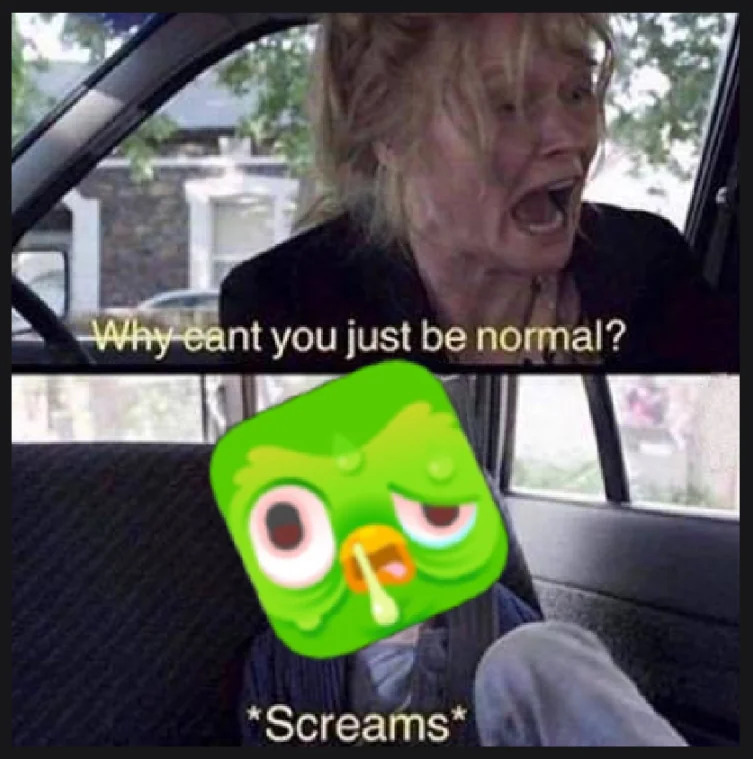
Like many people, I am using Duolingo to learn Spanish. And, like many people, I am tired of the app’s weird and aggressive marketing. I do not need to receive escalating threats from a cartoon owl in order to remain disciplined with my daily practice.
My breaking point came a few days ago, when the Duolingo app icon turned into some weird, sick version of the usually sanguine owl. It wasn’t the first time I’d seen it do this, and certainly wasn’t the first time they’ve done it. And why not? It gets them attention, for now.
Anyway, I’d had enough of it. I didn’t need random cartoon characters alternately screaming at me or encouraging me. I didn’t need a social or competitive element. I didn’t need weird notifications. I just wanted an app for learning Spanish.
Before that day, I had never really considered that Duolingo could actually be normal. I was so accustomed to Duolingo being Duolingo that I could not even conceive of a world where it was different. The settings are out of the way, of course.
Of course, this is an annoying Skinner box app, so there is no one button labelled “just be normal”. If you want to follow along at home (I’m on iPhone, but I imagine Android is similar) and turn Duolingo into a somewhat normal app, do the following:
- Select the profile (person) button on the bottom bar.
- Select the gear icon in the top right to access settings.
- Select Preferences and uncheck whatever you don’t want: motivational messages, Friends Quests, etc.
- Go back and select Notifications and uncheck everything you don’t want under push notifications and email. You can disable Smart Scheduling and set a reminder if you want Duolingo to scream at you only when you haven’t done your lessons by a certain time, rather than randomly at 9:30 in the morning.
- Go back and select Privacy Settings and uncheck everything.
We’re not done! You have to go to the Duolingo website and log in there to finish the job.
- Select More, then Settings, and uncheck any remaining preferences you don’t want.
- Select Notifications in the right sidebar and uncheck any remaining emails (I had Research participation opportunities, which didn’t show up in the app).
- Select Privacy Settings in the right sidebar and uncheck Make my profile public to remove yourself from social features like leagues. Also make sure Personalized ads is unchecked.
But wait: there is no option to make the Duolingo app icon normal.
There is, however, a solution on the iPhone. Remove the Duolingo app from your home screen and create a Shortcut for your home screen that opens Duolingo instead. You can use one of the built-in Shortcut icons or whatever custom icon you want.
Congratulations. Duolingo is now a somewhat normal app.